
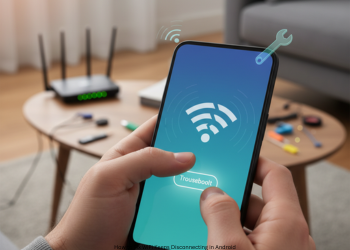
How to Fix WiFi Keeps Disconnecting in Android? Nothing is more frustrating. You’re streaming a movie, on a video call, or browsing online; then it’s gone. The Wi-Fi icon has a question mark or is just gone. Your Android phone has dropped Wi-Fi. You reconnect manually or just wait it out.
That endless on-off loop maddens anyone. The upside: it rarely means a busted phone. More often than not, a setting, glitch, or router tweak sorts this right out. This guide walks you through fixes, step by step, from basic to more challenging ones for rock-solid Wi-Fi.
Level 1: Quick Easy Fixes (Start Here)
Try these first. They work fast. They fix many issues.
1. Golden Rule: Restart Everything
It tops the list for good reason: phones and routers act like small computers, snagging sometimes; a restart clears glitches and it resets networks.
- Restart Phone Hold the power button. Select Restart.
- Restart Router: This is the most important step. Pull power plug out. Wait 30 full seconds. Plug back in. Give it 2-3 minutes to boot and send the signal. How to Fix WiFi Keeps Disconnecting in Android?
Check Distance and Signal
Eye the Wi-Fi bars up top. One bar means weak range edge. Walls, fridges, metal block signals bad.
- Do This: Move closer to router. Stable now? Definite weak signal. Move the router or an extender.
Level 2: Wi-Fi settings on the phone-dive
Reboots fail? Look to Android settings next.
Forget and Rejoin Network
Phone stores network information, such as a password. It corrupts easily. When you forget it gets wiped. Re-joining creates a new one. How to Fix WiFi Keeps Disconnecting in Android?
Do This:
- Settings > Wi-Fi or Network & internet.
- Tap gear by bad network. Or hold it. Choose Forget.
- Scan list; tap network; enter password fresh.
Advanced Wi-Fi Settings Check
Android smart tools drop weak nets too quick.
Do This: Settings > Wi-Fi > Wi-Fi preferences or Advanced – maybe three dots. Check these:
- Wi-Fi automatic turn on: On? Off.
- Switch to mobile data auto (or Adaptive Wi-Fi): Big problem. It drops Wi-Fi for data on a wobble. Turn it off. It stays on Wi-Fi. How to Fix WiFi Keeps Disconnecting in Android?
Reset All Network Settings
Stronger than one forget. Wipes all networks to start. How to Fix WiFi Keeps Disconnecting in Android?
Warning: Loses Wi-Fi passwords, Bluetooth pairs, mobile setup. Redo them all.
Do This:
- Settings > System > Reset options.
- Tap Reset Wi-Fi, mobile & Bluetooth (or network settings).
- Ok. Phone resets faster.
- Rejoin Wi-Fi. Repair Bluetooth.
Power Save Mode Check
- Battery modes: sleep, Wi-Fi off-screen. Causes drops.
- TO DO: Disable Power Saving or Battery Saver. Check for stability.
Level 3: Router and Network Check
Phone set right? Now look at router.
Test Other Devices
- Only your phone? Or laptop, other phone, TV too?
- Others drop? Router or ISP fault.
- Phone only? Device problem.
Switch Between Wi-Fi Bands (2.4 GHz and 5 GHz)
- Routers send two bands. Like road lanes.
- 2.4 GHz: slow, far reach, neighbour and microwave mess
- 5 GHz: Fast, short range, low mess.
- Do This: On 2.4? Try 5 GHz (says 5G or 5GHz). Or switch back. One fits your spot better. How to Fix WiFi Keeps Disconnecting in Android?
Level 4: Final Fixes
Nothing worked? Deep software or rare hardware snag.
App Check Safe Mode
New app similar to VPN, ad-blocker, optimizer is blocking Wi-Fi. Safe Mode kills third-party apps. How to Fix WiFi Keeps Disconnecting in Android?
Do This:
- Hold Power till menu.
- Hold the Power off or Restart icon until Safe mode pops up. Tap to reboot.
- Test Wi-Fi in Safe. Stable? Bad app guilty. Normal reboot. Delete new apps one by one.
Nuclear Option: Factory Reset
Wipes phone clean to factory. Fixes all software woes.
Big Warning: First backup data! Photos, contacts, files gone.
Do This: Settings > System > Reset options > Erase all data (factory reset). How to Fix WiFi Keeps Disconnecting in Android?
FAQs
Q1: Wi-Fi drops only home, fine elsewhere
Home router problem: Restart it and check settings; try switching between both bands-2.4/5 GHz.
Q2: To blame: phone case?
Rare but thick or metal cases block antennas. Ditch case. Check signal boost.
Q3: Reset Network deletes photos, apps?
No, just Wi-Fi passwords, Bluetooth, mobile settings gone. Files and applications safe.
Q4: Exclamation mark (!) by Wi-Fi icon?
Phone connects router. Router has no internet. Router or ISP issue. Not phone Wi-Fi.
1 thought on “How to Fix WiFi Keeps Disconnecting in Android?”