
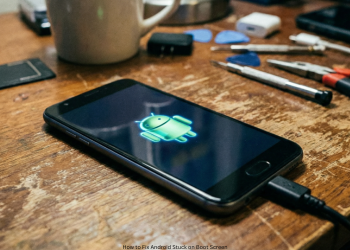
How to Fix Android Stuck on Boot Screen? It feels frustrating to watch your phone loop on its logo screen. Not all cases indicate that the device is broken. Most cases are due to software glitches. These steps will help you fix it yourself.
Part 1: Why Does This Happen? (Top Reasons)
Failed Update: Power cut out during install or a bug slipped in. Damaged Core Files: Key files for boot-up got corrupted. Problem App: New app clashes with system software. Modded Software Trouble: Rooting or custom ROM went bad. How to Fix Android Stuck on Boot Screen?
Hardware Issue: Rare, but bad memory or main board can be the cause.
Part 2: Easy Fixes That Save Your Data
Try these first. They keep your files safe.
Step 1: Force a Soft Restart
Unlike a normal reboot, this clears temporary files. No data loss.
- How: Button combos differ by model. Try these:
- Samsung, Google, most Android: Hold Power + Volume Down for 10-20 seconds
- Older models: Press and hold Power on its own for 30 seconds.
Hold until screen blacks out and restart starts. If it works, done! How to Fix Android Stuck on Boot Screen?
Step 2: Drain Battery or Charge Up
- Drain It: If restart fails, let battery die completely. Charge 30 minutes on a wall outlet. Then power on.
- Charge It: Low battery can block boot. Use wall charger, not PC USB. Wait one hour. Retry soft restart.
Step 3: Boot in Safe Mode
Safe Mode runs core apps only-no third-party ones. A successful boot indicates a bad app.
Enter It:
- Press and hold Power until the logo appears. Release Power. Immediately hold Volume Down. Continue to hold until “Safe mode” appears in bottom left. How to Fix Android Stuck on Boot Screen?
If It Boots:
- The phone rings. Delete the new apps one at a time. Begin with latest. Normal reboot after each. Test until loop is ceased.
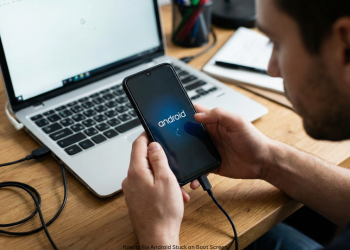
Part 3: Deeper Fixes in Recovery Mode
Basic steps failed? Use Recovery Mode menu for repairs.
!! WARNING: Last step wipes all data. Back up first if you can. !!
Enter Recovery:
- Power off first. Force it with Power + Volume Down if looping. Hold combo for your model:
- Samsung: Power + Volume Up + Bixby OR just Power + Volume Up. Google Pixel: Power + Volume Down. OnePlus: Power + Volume Down.
- Volume keys scroll. Power selects.
Step 4: Clear Cache Partition (Safe Bet)
Cache stores the temp system files. Bad ones cause loops. Wipe skips personal data. Head to Recovery. Scroll down to “Wipe cache partition.” Select. Confirm. When done, select “Reboot system now” then test boot. How to Fix Android Stuck on Boot Screen?
Step 5: Factory Reset (Final Step)
This wipes everything: Apps, photos, contacts gone. Back to stock software. No undo.
In Recovery: Scroll to “Wipe data/factory reset.” Select. Confirm with “Yes.” The phone erases the data. Then “Reboot system now.” Most of the time, software issues get fixed this way. How to Fix Android Stuck on Boot Screen?
Part 4: No Luck?
Factory reset failed: Hardware problem probably. Bad board or chip.
Call for maker support, or check with a repair shop.
Conclusion
A boot loop of an Android phone scares its users, yet it hardly kills the device. Software glitches are often the cause, rather than hardware faults. We will outline a step-by-step process in fixing this. Start with the easiest. Try a forced restart or Safe Mode. These fix app issues or bugs. No data gets lost. How to Fix Android Stuck on Boot Screen?
Basic remedies don’t work? Try Android Recovery Mode now. Begin by wiping the cache partition. It deletes faulty temp files. The data remains undisturbed. Lastly, do a factory reset. That cleans everything and reinstalls your stock software. That beats deep software rot. How to Fix Android Stuck on Boot Screen?
FAQs
Q1: Phone stuck on logo?
First step? Soft reset first. No data lost. Hold Power + Volume Down 15-20 seconds. The phone restarts, mostly fixing these types of glitches. How to Fix Android Stuck on Boot Screen?
Q2: “Wipe cache partition” vs. “Wipe data/factory reset”?
Big difference:
Wipe cache partition: Clears temporary files; does for speed. Safe: Keeps photos, apps, contacts. First attempt in Recovery
Wipe data/factory reset: Deletes all the storage. Back to new state. No undo.
Q3: What is Safe Mode? How does it help?
Safe Mode runs basics only. No downloaded apps. Boots fine? Bad app causes loop. Restart. Delete recent apps to find it.
Q4: Dead battery make bootloop?
Low or bad battery starves power. OS is unable to load. Charge on wall for one hour. Then force restart.
Q5: Failure of a factory reset; still stuck. What now?
Reset wipes and reloads OS. No fix means hardware issue: bad motherboard, storage chip, or key parts. Take it to maker or tech pro for repair.
1 thought on “How to Fix Android Stuck on Boot Screen?”