

How to Fix Android 14 Battery Drain Issue? You got excited. Here came the new Android update, with its smoother animations, better privacy, and neat lock-screen tweaks. You hit Update, sat through it, and suddenly: disaster. Your phone used to run a full day on one charge. Now it loses power like water from a drip. By afternoon, you scramble for a plug.
This hits home for many. Immediately following a big OS upgrade, battery drain ranks as a top headache for phone owners. Android 14 adds many great features, but the switch can mess up power control on your device. No need to panic or wish you skipped it. Most times, you can fix this. This full guide will take you through some clear steps from quick basics to deeper tweaks to diagnose and end your Android 14 battery woes.
Part 1: The Reasons Why Battery Drains After Update
Know the causes first. It helps before fixes. Rarely, one issue; often, several mix together.
- Work after Update: OS resorts files, tunes apps, rebuilds storage. And this background work consumes power continuously for hours, sometimes days.
- Apps Not Ready: Developers lag on updates. The old apps use code that fights Android 14’s battery saves; they run sloppy in the back.
- What’s New New Features Overdo It: Android 14 adds back tasks, fancy lock screens, better services. Bugs or extra power use can strike at launch.
- Bad cache or old data: the remnants of Android 13 conflict with the new configuration. These start battles that take away the battery.
- Network Glitches: OS tweaks to Wi-Fi, Bluetooth, data or 5G keeps radios on for too long.
We see the suspects. Time to troubleshoot step by step. How to Fix Android 14 Battery Drain Issue?
Part 2: Quick Starts Basic Moves to Try Now!
For now, skip using factory reset. These steps are often easy and work well.
Wait It Out (48-Hour Wait)
Your phone hustles post-update; this is because it learns habits for its smart battery tools. Use it normally for 24-48 hours, then charge full overnight. Most drains fade as setup ends. How to Fix Android 14 Battery Drain Issue?
Simple Restart
Reboots fix old bugs best. They kill stuck tasks that steal power. How: Hold power button. Tap Restart. Do it daily for first days after update.
Hunt Small Updates
Brands push quick fixes soon after big ones. They patch battery bugs from user reports. Check: Settings > System > System update. Or Settings > About phone > Software update. Tap Check. Install right away. How to Fix Android 14 Battery Drain Issue?
Part 3: Go Deeper – Spot the Power Thieves
Still bad after days? Play detective. Android 14 shows power use clear.
- Find the problem: Settings > Battery. Tap Battery usage. See apps and services ranked by drain over 24 hours.
- Observe the following: Top app you hardly used. Two minutes open but 25% drain? Big warning. High back use. Check time in front vs. back. Games should stay quiet. Services like Mobile network, Wi-Fi, Android System high? Points to net or OS bugs.
See one or two? Train on those next. How to Fix Android 14 Battery Drain Issue?
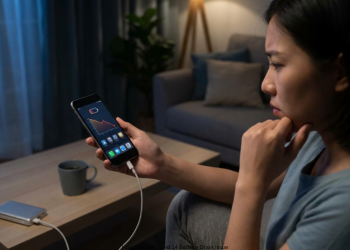
Part 4: Repair Tools Complete Suite of Solutions
Go down this list, hit app fixes first, then system tweaks. How to Fix Android 14 Battery Drain Issue?
A. App Management
- Update Everything: Play Store > Profile > Manage apps & device > Update all. New patches fit Android 14. Key move.
- Limit Back Run for Bad Apps: Strong fix for hogs. Settings > Apps > See all apps. Tap the bad one. App battery usage. Set to Restricted from Optimized. Effect: Cuts back data and run. Notifications can lag. But no drain when idle.
- Clear App Cache: Bad cache makes apps act up. Settings > Apps > See all. Tap app. Storage & cache. Clear cache. Skip Clear storage. It wipes data.
- Uninstall, Reinstall: Still bad? Remove full. Get fresh from Store.
- Replace It: Lousy Android 14 app? Look for something lighter.
B. System, Screen, Net Tweaks
- Smart Battery On: Check these. Adaptive Battery: Settings > Battery > Adaptive Battery. Enable Adaptive Connectivity: Settings > Network & internet > Adaptive connectivity. Switches 5G/4G smart
- Control Screen: Biggest power eater. Adaptive Brightness: Settings > Display. On. Screen Timeout: 30 seconds. Settings > Display > Screen timeout. Smooth Display: Off for max save. Settings > Display > Smooth Display.
- Cut Scans: Settings > Location > Location services. Off Wi-Fi scanning, Bluetooth scanning. Stops hunts when off.
- 5G Check: Fast but thirsty, worse in weak spots. Switch to 4G if needed. Settings > Network & internet > SIMs > Preferred network type. Pick 4G/LTE.
Part 5: The Nuclear Options (When All Else Fails)
You have tried all previous steps, and your phone still drains fast. Now, use stronger fixes. Warning: Always back up data before making any factory reset. How to Fix Android 14 Battery Drain Issue?
Wipe Cache Partition (Some Devices): This will clear temporary system files. Your personal data will not be affected. It involves booting the phone in recovery mode. Steps differ depending on the brand of the phone. You may try looking up the steps for a Pixel or Samsung phone. You can search “wipe cache partition [your model]”. This is a very safe step that can help with a lot of glitches that happen after an update. How to Fix Android 14 Battery Drain Issue?
Reset App Preferences: This resets the permissions of apps, clears notification rules, drops background limits to their defaults, and maintains app data.
How to: Settings > System > Reset options > Reset app preferences.
Factory Data Reset: Last option. Wipes phone clean. It restores the device to its factory condition. Deep software bugs end. Old Android file issues are fixed.
Back up first! Save photos. Contacts. Messages.
How to: Settings > System > Reset options > Erase all data (factory reset).
After reset, set up fresh. Bypass the complete cloud backup; it might add the problem back. Add apps one by one. How to Fix Android 14 Battery Drain Issue?
Conclusion: Be patient and follow the steps.
Battery drain after update annoys most of the users. It’s seldom hardware or OS fault; this guide will help spot the cause, then fix it right. Wait first. Let the phone settle. Check for bad apps. Tweak settings. This often puts an end to Android 14 drain. Enjoy new features free from plugs. How to Fix Android 14 Battery Drain Issue?
FAQs
Q1: Has Android 14 ruined my battery for good?
Nope. More than 99% of cases are due to software causes, not hardware. Optimization, bad apps, minor bugs-all fixable. Battery hardware is fine. How to Fix Android 14 Battery Drain Issue?
Q2: Why fast drain after big update?
Like a new home move. OS unpacks files. Re-sorts data. Learns your habits. It uses lots of power and lasts one or two days. Old apps may run inefficient too.
Q3: Top three quick starts?
Wait 24-48 hours. Let optimizations run. Restart phone. Clears small glitches. Update apps. Use Play Store. Get all fixes for new Android. How to Fix Android 14 Battery Drain Issue?
Q4: Now, find that bad app?
Simple: Settings > Battery > Battery usage. See app list by power use. Spot high background drain on unused apps. That’s it.
Q5: Will the battery life fix itself?
Yes, often. Tweaks after updates settle in 2-3 days. It improves after charges. But for bad apps or bugs, there should be guided steps
Q6: Factory reset-only alternative? When?
Last resort. Rarely needed. Try all other options first. Applications. Background limits. Caches. If it continues to have a bad drain, then reset. Back up everything. How to Fix Android 14 Battery Drain Issue?
Q7: Turn off 5G or 120Hz? Helps?
Yes, big power savers. 120Hz screen: Smooth but power-hungry vs 60Hz. 5G: Fast but more power-hungry than 4G. Weak signals really hurt. Switch off or use adaptive. It saves juice when the speed is not key. How to Fix Android 14 Battery Drain Issue?
1 thought on “How to Fix Android 14 Battery Drain Issue?”