
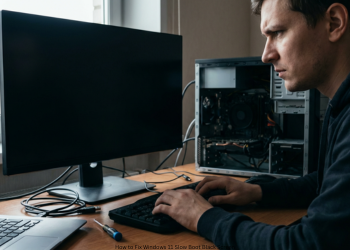
How to Fix Windows 11 Slow Boot Black Screen? You power on your PC, and the brand logo blinks. Then. nothing. A black screen drags on interminably 30 seconds, a minute, or more before the Windows 11 login screen appears. This problem of slow boot black screen hits many users hard. It is like starting up your car, and you wait a full minute for it to catch. Most of these are software or driver related rather than faulty hardware. In this guide, top causes and steps are outlined, from easy tweaks to deeper checks.
Why It Happens: The Black Screen Phase The screen goes black right after BIOS/UEFI, but before Windows login. Then, Windows handles the following key tasks: It initiates all hardware drivers, especially graphics. It initiates startup services and apps. It hooks up to peripherals. A delay points to a snag in one step. We track it down and solve it. How to Fix Windows 11 Slow Boot Black Screen?
Level 1: Easy Fixes First
These steps fix lots of boot hangs fast.
1. Pull All USB Devices
Faulty USB gear or drivers often stalls Windows boot.
Action:
- Power off your PC completely.
- Remove all but keyboard and mouse. Skip drives, cams, printers, hubs, chargers.
- Turn on again.
- Fast boot? You found it. Shut down. Add the devices one at a time and reboot every time to identify the bad one. Update its driver. How to Fix Windows 11 Slow Boot Black Screen?
2. Turn Off Fast Startup
Meant to speed boots it often causes hangs. Saves a hibernation file that corrupts or clashes.
Action:
- Hit Start. Type Control Panel. Open it.
- Click Hardware and Sound, then Power Options.
- Left side: Select what the power buttons do.
- Click Change unavailable settings.
- Uncheck Turn on fast startup.
- Save. Shut down fully – no restart. Power on to test.
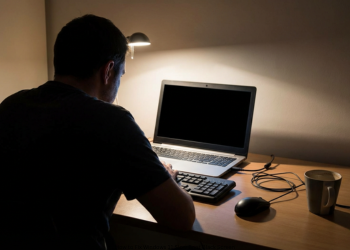
Level 2: Verify Drivers
Quick fixes fail? Graphics driver is prime suspect. The switch from basic display to your GPU fails-often. How to Fix Windows 11 Slow Boot Black Screen?
3. Update Graphics Drivers
Most black screen stalls are caused by old or bad drivers.
Action: Skipping Windows Update. Get latest from the maker site for your card.
- NVIDIA: geforce.com/drivers
- AMD: amd.com/en/support
- Intel: intel.com/content/www/us/en/download-center/home.html
- Install. Reboot.
4. Clean Install Graphics Driver
New over old may not cut it. Clean wipe clears junk.
Action:
- Download Display Driver Uninstaller (DDU)-free tool for pros
- Download fresh GPU driver from manufacturer.
- Go offline. Stops Windows auto installs.
- Boot to Safe Mode.
- Run DDU. Clear all driver traces.
- Reboot normal. Low res is okay.
- Install new driver.
- Reboot final time. Fresh start fixes tough cases.
Level 3: Deep System Checks
Drivers okay? Check other processes.
5. Stop Extra Startup Apps
Bad apps at boot can freeze things. How to Fix Windows 11 Slow Boot Black Screen?
Action:
- Ctrl + Shift + Esc for Task Manager.
- Startup apps tab.
- Scan list. Disable non-key items. Right-click, select Disable.
6. Run SFC and DISM
They detect and replace bad Windows files that prevent booting.
Action:
- Start menu. Type in cmd. Right-click Command Prompt. Run as admin.
- Type DISM /Online /Cleanup-Image /RestoreHealth. Enter. Wait 10 to 15 minutes.
- Then sfc /scannow. Enter.
- Restart afterward. How to Fix Windows 11 Slow Boot Black Screen?
Level 4: Final Steps
Still black? Deep software glitch or rare hardware fault.
- System Restore: New problem? Roll back to good prior state.
- Hardware Check: SSD/HDD or RAM Test. Use Windows Memory Diagnostic for RAM.
- Reset PC: Last move. Reinstalls Windows 11. Settings > System > Recovery > Reset this PC. Try Keep my files first. Backup before Remove everything. How to Fix Windows 11 Slow Boot Black Screen?
FAQs
Q1: Does slow boot mean my PC is toast?
No, it is due to software clashes, like drivers or Fast Startup. Hardware rarely fails.
Q2: Two monitors? Problem?
Yes. They confuse boot. Test with one primary monitor.
Q3: Started after Windows update?
Common. Update adds bad driver or wrecks hibernation. Clean GPU reinstall (Step 4) works best. How to Fix Windows 11 Slow Boot Black Screen?
Q4: BIOS settings?
Rare for sudden hangs. Set Windows drive first in boot order. Wrong order slows but skips long black.
Q5: DDU clean install failed. Next?
USB device or Fast Startup. Unplug all. Disable feature.
1 thought on “How to Fix Windows 11 Slow Boot Black Screen?”