

How to Fix Mobile Microphone Low Volume? Low mic volume is a common hassle on phones. Callers say they can’t hear you well. Voice notes come out weak and far away. Normally, the solution is rather simple. The steps will be covered in this guide, from the basic checks to the software tweaks.
The Ultimate Guide to Fix Low Microphone Volume on Your Phone
Most of the time, it’s a dirty, improper app settings, or a broken part. We check one by one the usual causes. How to Fix Mobile Microphone Low Volume?
Part 1: Check Physical Issues First!
Most problems are caused by dirt. Follow these steps now.
Step 1: Find Your Phone’s Mics
The new phones at least have two mics.
- Main Mic: This sits on the bottom near the charger port. It works for calls at your ear.
- Extra/Noise-Cut Mic: On top or beside back cameras. It blocks background sounds. It is used in phones while using speaker mode and videos.
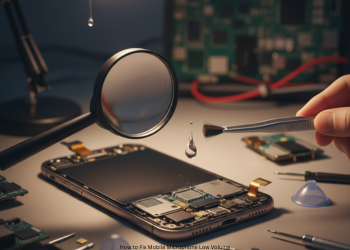
Step 2: Clean Mic Holes (Top Fix)
Tiny holes get clogged up with lint, dust and grime over time. This prevents sound from getting in. How to Fix Mobile Microphone Low Volume?
Clean Like This:
- Check for holes on the bottom and top. You may spot junk.
- Blow off loose particles with canned air. Hold the can inches away.
- For stuck stuff, get a soft tool. Try a plastic toothpick, SIM tool, or clean soft brush.
- Scrape gently. Don’t push hard or deep.
- Skip your breath, it’s wet. No metal pins. They damage the mic inside.
Step 3: Ditch Case and Screen Cover
- Bad cases block mic holes and muffle sound. Take it off. Test your mic.
- Edge-wrapped screen protectors can mess with mics as well. Remove and check.
Part 2: Software Fixes
No luck with hardware? Check phone settings.
Step 4: Reboot Your Phone
Restarting is a great way to resolve some quirky software problems in audio and other media. This is quick, easy, and frequently works. How to Fix Mobile Microphone Low Volume?
Step 5: Test Each Mic Alone
Key step to identify hardware vs. software faults.
- Main Mic Test Use Voice Recorder app. Hold phone to ear. Speak and play back. Too quiet?
- Extra Mic Test: Open Camera. Record video talking. Play it. Videos use the top mic.
- Speaker Test: Call someone, switch to speaker and ask if they hear better. Taps the noise-cut mic.
What Results Mean:
- Clear on speaker but not ear calls? Bottom mic is the problem.
- Low everywhere? Software glitch or both mics bad.
Step 6: Disable Bluetooth
Phone may pick nearby Bluetooth device mic. Pull down quick panel. Kill Bluetooth. Test call. How to Fix Mobile Microphone Low Volume?
Step 7: App Permissions Fix
Low only in one app, like WhatsApp. It lacks mic access.
- Android: Settings > Apps > [App] > Permissions > Microphone. Set to “Allow while in use.”
- iPhone: Settings > Privacy > Microphone. Turn on for that app.
Step 8: Disable noise cut features.
Aggressive noise block can quiet your voice, too.
- iPhone: Settings > Accessibility > Audio/Visual. Turn “Phone Noise Cancellation” on. (Try off if needed.)
- Android: Check Settings > Call Settings or Phone app > Accessibility. Turn off “Noise reduction.”
Part 3: Hard Repairs Last
Still broken? Try big resets.
Step 9: Reset Settings Only
Sets defaults. Keeps your data safe.
- iPhone: Go to Settings, tap General, then Transfer or Reset iPhone, then Reset, and finally Reset All Settings.
- Android: SETTINGS > SYSTEM > RESET OPTIONS > RESET WI-FI, MOBILE & BLUETOOTH. OR RESET APP PREFS.
Step 10: Full Factory Reset
Wipes all; phone like new.
WARNING: Backup data first. It wipes everything.
Reset fails? Hardware is shot.
Part 4: Hardware Breakdown
- All steps done? Mic part is busted from drops, water, or loose wires.
- Go to a repair shop or maker’s support. They replace the faulty mic.
Conclusion
A quiet microphone kills calls. Fixes remain very simple and easy to try. First, clean the mic ports top and bottom. Debris blocks them most. Then, restart your phone. Switch Bluetooth off. Check app permissions, too. These fix many bugs. How to Fix Mobile Microphone Low Volume?
Test the mics alone using the Voice Recorder and Camera apps. Test the main and noise-cancel ones. Determine whether it is just one feature or the whole system. Reset the settings in tough cases. Resort to a factory reset last. If steps fail after reset, it’s hardware trouble. The mic part broke. Pros must repair it. How to Fix Mobile Microphone Low Volume?
FAQs
Q1: People hear me fine on speaker, but not on normal calls. Why?
This points to your bottom mic. Calls use the one by the charge port. Speaker taps the top noise mic. One good means blockage or break in the bottom one. Clean it well. How to Fix Mobile Microphone Low Volume?
Q2: I cleaned holes, but the sound stays low. Next?
Blame your case. Take it off. Test a call. Thick cases block the ports and dull the voice. If no fix, restart the phone.
Q3: Safe to poke a needle in the mic hole?
No. Needles rip the thin mic skin inside. Damage lasts. Use air spray. Soft brush works. Plastic toothpick scrapes safe.
Q4: Recordings sound good, but WhatsApp calls stay quiet. What gives?
Apps do this, not phone hardware. There are two things to check.
Permissions: Apps need mic access; go to settings, turn it on for that app. Bug: Update the app fresh from store. How to Fix Mobile Microphone Low Volume?
Q5: Does water hurt the volume of the mic?
Yes, wet spots corrode parts. Sound muffles or dies. Recent splash? Likely it. Pros fix water mess. How to Fix Mobile Microphone Low Volume?
1 thought on “How to Fix Mobile Microphone Low Volume?”