

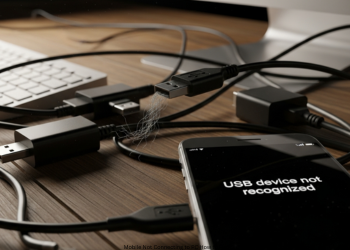
Mobile Not Connecting to PC How to Fix. Connect your phone to your computer. You’d think this would go quick. Too often, it just charges. No files pop up. Your computer skips right over the device. Blame a bad cable, wrong phone settings, or absent drivers. We’ll fix it step by step.
Part 1: Basic Fixes for Android and iPhone
Try these first. They fix most issues no matter the phone type.
Test the USB Cable
Bad cables top the list for failed links; quality matters.
- Get a Good Data Cable: Cheap or worn ones usually charge only. They miss the data wires. Keep the original cable of your phone.
- Look for Damage: Observe cuts, bends, or twisted ends. Throw them out. Change the Cable: Get any other known good data cable. Success indicates your old one was the culprit. Mobile Not Connecting to PC How to Fix?
Test USB Ports
And sometimes ports fail, just like phones or cables.
- Use another PC Port: Go from front to rear panel in desktops. Ports at the rear work best.
- Avoid USB Hubs: Plug directly into the PC. Hubs interfere with power and data. Clean the Ports: It is necessary to blow the dust from the phone and computer ports. Compressed air scores over all. Mobile Not Connecting to PC How to Fix?
Reboot Everything
Turn off, then on. It clears software bugs blocking links on phone and PC.
Part 2: Fixes only for Android
Universal steps failed? Check Android settings next.
Top Android Fix: Switch USB Mode
Android boots in charge-only mode for safety. Change it to share files. Unlock your phone. Connect using a data cable. Pull down the top screen for notifications. Tap the “USB charging” alert. Select “File Transfer” or “MTP” from the menu. Your PC detects the phone in File Explorer under This PC. Mobile Not Connecting to PC How to Fix?
Enable USB Debugging (Strong Backup)
- This will force a firm link. First, enable Developer Options.
- Developer options- Settings About phone.
- Tap Build number seven quick times. Message says you’re a developer now.
- USB Debugging ON: Back to Settings > System > Developer options. Flip the switch for USB debugging. Replug the phone. When prompted on screen, allow it, check always allow, hit OK. Mobile Not Connecting to PC How to Fix?
Refresh PC USB Drivers
PCs require the proper software for phone conversations. Connect your phone to your computer. Right-click on Start. Select Device Manager. Under Portable Devices, Other Devices, or Android section, find your phone. It may have a yellow mark. Right-click on it. Click on Update Driver. Let the Windows search for and install drivers. If not working, download the maker’s driver online, like Samsung Switch or Google USB. Mobile Not Connecting to PC How to Fix?
Part 3: Fixes Only for iPhone
iPhones have special steps.
Top iPhone Repair: “Trust This Computer”
Safety hides data until you say yes. Unlock iPhone. Connect it to the PC. A screen pops up saying, “Trust This Computer?” Tap on Trust. If asked, enter the code. You will see an iPhone in File Explorer for pictures or in iTunes app. Mobile Not Connecting to PC How to Fix?
No Trust Pop-Up?
- Past “Don’t Trust” kills it. Reset trust list.
- Go to iPhone Settings, then General, and select Transfer or Reset iPhone. Tap Reset. Tap Reset Location & Privacy. Prompt returns next plug-in
Add iTunes or Apple Devices App
- iPhone talks in Windows need Apple’s drivers.
- Hit the Microsoft Store on either Windows 10 or 11. Install iTunes or Apple Devices. The drivers get added. Restart PC. Reconnect iPhone. Mobile Not Connecting to PC How to Fix?
Last Check: Still No Luck?
Try Another PC: Key test. Works there? Blame original PC ports or drivers. Fails everywhere? Phone or cable problem. Hunt Lint: Peer in phone port. Pocket fuzz blocks contacts. Pick it out with plastic tool. Mobile Not Connecting to PC How to Fix?
Conclusion
Phones that refuse to connect to a PC are frustrating, but they hardly ever point to major hardware faults. Fixes lie in three places: the cable link, phone settings, or PC drivers. Faulty charge-only cables and wrong phone USB modes are at the top of the list. Android owners must pull down notifications. Then, set mode to “File Transfer” (MTP). iPhone users tap “Trust” on-screen prompt. Install iTunes or Apple Devices app on PC for drivers. Mobile Not Connecting to PC How to Fix?
Go through the checks one by one. The hardware check, phone options confirmation, and correct setting up of the PC resolve most problems. Elimination is used. A specific setting, if missed, blocks success most times. Mobile Not Connecting to PC How to Fix?
FAQs
Q1: Phone charges on PC but does not appear. Main cause?
This hits often. Power flows, data does not. Top reasons:
Charge-only cable in use. Swap for quality data cable. Android in “Charging only.” Swipe notifications. Pick “File Transfer” (MTP). iPhone prompt ignored. Tap “Trust This Computer” on screen.
Q2: Charging cable vs data cable?
Charging cables carry power wires only. Data cables add wires for phone-PC info swap. They appear similar. Stick with your phone’s original or a trusted brand.
Q3: No “Trust This Computer” on the iPhone. How can I bring it back?
Past “Don’t Trust” choice conceals it. Reset in Settings > General > Transfer or Reset iPhone > Reset > Reset Location & Privacy. Data remains safe. Prompt returns next plug-in
Q4: What is driver? Why PC needs it?
Driver translates for PC. Software lets Windows talk to phone hardware. No driver means PC spots plug, but stays silent. Samsung Smart Switch or iTunes adds them auto.
Q5: USB Debugging? Safe for Android?
Amps up PC-phone talk for devs. Safe to use for fix tests. Gives PC more access. Forces link if “File Transfer” fails. Turn off after use.
Q6: Fault with the phone, cable or PC? Test on spare PC. Phone links there?
First blame PC: drivers or port. No link? Problem with cable or phone port. First change the cable.
1 thought on “Mobile Not Connecting to PC How to Fix”