
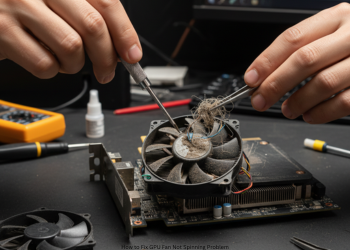
How to Fix GPU Fan Not Spinning Problem? You look inside your PC case. Your eyes fall on your big graphics card. A surge of panic: the fans aren’t spinning. Will your expensive GPU just fry? Is it toast? Don’t look for another one. Relish the moment. Often, this is no problem. It’s an inbuilt bonus. And if anything goes wrong, you do it yourself. This walkthrough will guide you through every step, from the most basic, common fixes to deeper hardware tweaks.
Part 1: Is It Really a Problem? The Zero RPM Mode
Start here. It’s important. Most new graphics cards make use of a quiet Zero RPM mode.
What it does: Fans stay off during idle or light use. Think web surfing or video playback. They kick in only when temps hit about 50-60°C (122-140°F).
Why it’s there: There’s no need for fan noise on easy tasks. Your PC stays hushed.
The Best Check: Stress Your GPU
- The fastest way to test if fans work right.
- Fire up a tough game. Play a bit. Watch the fans.
- Alternatively, download a free utility such as FurMark or Unigine Heaven. Fire it up. Watch temperatures rise.
- What happens: Past 50°C, fans should whirl. If they do, great! Your GPU is fine. No sweat.
- Fans idle and temps hit 85-90°C? Kill the test. Move on.
Part 2: Software Fixes
Fans won’t turn under load? Check software or drivers next.
Step 1: Simple Restart
Old trick, but it works: A reboot clears the glitches blocking your hardware.
Step 2: Force Fans with Software
- Key test. Fan tools allow you to bypass auto mode and turn them manually.
- Download MSI Afterburner. It fits most GPUs.
- Launch it. Locate the Fan Speed (%) slider.
- Hit the Auto button to turn it off.
- Slide it to 60% or 70%.
- Tap Apply.
Outcome:
- Fans spin? That’s software or bad sensor data. Motors are good. Try new drivers next. How to Fix GPU Fan Not Spinning Problem?
- No spin? Hardware problem. Go to Part 3.
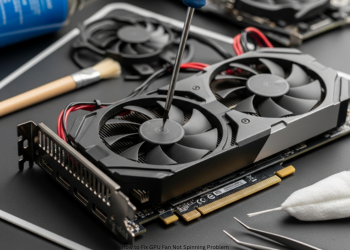
Step 3: Fresh Driver Install
- Bad drivers mess with fan control.
- Grab latest from NVIDIA or AMD site.
- Download the free and brilliant DDU – Display Driver Uninstaller.
- Boot to Safe Mode.
- Run DDU. It cleans old drivers.
- Restart to normal mode. Install new ones.
Part 3: Practical Hardware Tests
Safety first. Power off your PC. Unplug from wall. Hit power button to drain juice. Touch metal to ground yourself. Avoid static zaps. How to Fix GPU Fan Not Spinning Problem?
Step 1: Find all Blocks
Eye the GPU fans closely. See any loose cables like SATA or fan wires jamming blades? Nudge them aside. How to Fix GPU Fan Not Spinning Problem?
Step 2: GPU Power Cables
- Big cards pull power straight from PSU.
- Check PCIe cables on GPU side or top.
- Unplug them.
- Plug firm. Feel the click. Loose ones keep GPU in low power. Fans stay off. How to Fix GPU Fan Not Spinning Problem?
Step 3: Reset the Card
- It might sit loose in the slot.
- Unplug power and display cables.
- Unscrew from case.
- Press the PCIe slot clip to release it.
- Pull straight out.
- Slide back in till clip clicks.
- Screw down. Hook up cables.
Last Options If Nothing Works
Fans dead after all this? Hardware fault likely.
- Bad fan motor: Common. They wear out. One fan off? Replace that one.
- Loose fan wire: Check header on GPU board.
- Bad controller: bigger GPU problem.
Get identical model fans online. Amazon or eBay. Replace them. Saves money from new GPU. Requires skills. Not sure? Warranty claim or check with a shop professional. How to Fix GPU Fan Not Spinning Problem?
FAQs
Q1: Safe to run PC with still GPU fans?
Fine for light stuff, like browsing. Bad for games or heavy work; overheating leads to crashes and damage. How to Fix GPU Fan Not Spinning Problem?
Q2: One fan spins, others don’t?
Dead motor on quiet one. Swap it out.
Q3: Fans rev high at boot then stop?
Normal. Boot self-check. Proves power flows and they can turn. Good news.
1 thought on “How to Fix GPU Fan Not Spinning Problem?”