
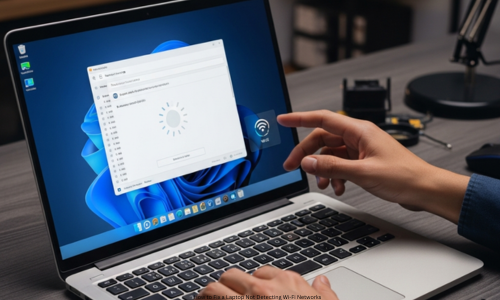
How to Fix a Laptop Not Detecting Wi-Fi Networks? Nothing frustrates more than powering up your laptop for work or class, then seeing no Wi-Fi networks listed. The icon might vanish, show “No networks found,” or stick on airplane mode. Students in online classes, remote workers, or everyday users all face day-ruining halts from this.
The fix often skips pro help. Software bugs, bad drivers, wrong settings, or small hardware tweaks cause it—not lasting harm. This post breaks down why laptops miss Wi-Fi, how to spot the issue step by step, and key fixes with simple steps. It uses clear words so anyone can follow and fix with ease. How to Fix a Laptop Not Detecting Wi-Fi Networks?
Understanding the Problem: What Does “Wi-Fi Not Detected” Mean?
A laptop missing Wi-Fi networks points to one issue:
- Wireless adapter turned off
- Wi-Fi driver gone or old
- Network services stopped
- Airplane mode active
- Update clash
- Wi-Fi hardware unresponsive
Note this rarely means a bad router. If phones, tablets, or other laptops connect fine, blame your machine. How to Fix a Laptop Not Detecting Wi-Fi Networks?
Common Symptoms of Wi-Fi Detection Issues
Spot your signs first:
- No Wi-Fi icon on taskbar
- Wi-Fi gone from settings
- “No Wi-Fi networks found” alert
- Just Ethernet shows
- Wi-Fi vanished after working
- Wi-Fi returns post-reboot, then quits
Signs point to the cause.
Step 1: Check the Basics First (Often Overlooked)
Restart Your Laptop
It clears glitches blocking Wi-Fi.
Why it works: Restarts fix short driver fights and service slips.
Restart Your Wi-Fi Router
Power it off 30 seconds. Power on.
Why it works: Routers quit broadcasting right, lights or not.
Check If Other Devices Can Detect Wi-Fi
Test with phone or spare laptop.
- No devices see Wi-Fi → Router fault
- Your laptop alone fails → Laptop fault
Step 2: Check Airplane Mode and Physical Wi-Fi Switch
Turn Off Airplane Mode
Laptops flip it by mistake.
- Windows: Tap network icon. Turn airplane off.
- Fn keys: Hit Fn + Wi-Fi key (F2, F5, F12 often).
Find Physical Wi-Fi Switch
- Old models have side or front switch.
- Flip it on.
Step 3: Enable Wi-Fi Adapter in Network Settings
System hides Wi-Fi at times.
Windows way:
- Hit Control Panel
- Pick Network and Internet
- Network and Sharing Center
- Change adapter settings
- Spot Wi-Fi
- Right-click if off → Enable
No adapter? Drivers or hardware trouble.
Step 4: Check Device Manager for Wi-Fi Adapter Issues
It checks if Windows sees Wi-Fi gear.
Open it:
- Windows + X
- Device Manager
- Expand Network adapters
Signs:
- Adapter shows fine → All good
- Yellow triangle → Driver glitch
- Gone → Driver or hardware fail
- “Unknown device” → No driver
Step 5: Update or Reinstall Wi-Fi Drivers
Drivers spark most Wi-Fi woes.
Update:
- Right-click adapter
- Update driver
- Auto search
- Right-click
Reinstall:
- Uninstall device
- Reboot
Windows reloads it.
Missing Driver?
- Go to maker site
- Model search
- Grab newest Wi-Fi driver
- Install by hand
- This solves tons of cases.
Step 6: Check Windows Network Services
Wi-Fi needs running back services.
Do this:
- Windows + R
- services.msc
- Enter
Set these to Run and Automatic:
- WLAN AutoConfig
- Network Connections
- Network List Service
- Network Location Awareness
Stopped WLAN AutoConfig kills Wi-Fi. How to Fix a Laptop Not Detecting Wi-Fi Networks?
Step 7: Run Windows Network Troubleshooter
Built tool spots issues fast.
Run it:
- Settings
- Network & Internet
- Status
- Network troubleshooter
It nails drivers and setups often. How to Fix a Laptop Not Detecting Wi-Fi Networks?
Step 8: Reset Network Settings
Last resort so far.
Resets:
- Clears saved nets
- Reloads adapters
- Defaults settings
How:
- Settings
- Network & Internet
- Network reset down page
- Reset now
- Reboot
Rejoin Wi-Fi after. How to Fix a Laptop Not Detecting Wi-Fi Networks?
Step 9: Check BIOS/UEFI Settings
BIOS hides Wi-Fi sometimes.
Check:
- Reboot
- BIOS key (F2, F10, DEL, ESC)
- Find Wireless, Network, Onboard
- Enable Wireless LAN
- Save, exit
Key after BIOS changes. How to Fix a Laptop Not Detecting Wi-Fi Networks?
Step 10: Check for Windows Updates or Roll Back Updates
- Updates break drivers at times.
- Grab pending updates.
- Post-update start? Roll back.
Driver roll back:
- Device Manager
- Right-click adapter
- Properties → Driver
Roll Back if there. How to Fix a Laptop Not Detecting Wi-Fi Networks?
Step 11: Scan for Malware or System Corruption
Bugs or bad files kill nets.
Do:
- Full Windows Defender scan
- Admin Command: sfc /scannow
- Fix found errors.
Step 12: Test with External Wi-Fi Adapter
Test USB Wi-Fi dongle.
- USB works → Inside card bad
- USB fails too → Deeper issue
Cheap USBs fix forever often. How to Fix a Laptop Not Detecting Wi-Fi Networks?
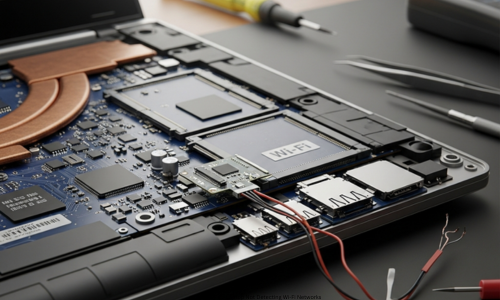
When It’s Likely a Hardware Problem
Hardware fail if:
- No adapter in BIOS or Manager
- USB works, inside no
- Drop or spill history
- Stays bad post OS redo
Swap card or use USB. How to Fix a Laptop Not Detecting Wi-Fi Networks?
Preventing Future Wi-Fi Detection Problems
Stop repeats:
- Update drivers
- No hard shuts
- Restore points
- Windows updates
- Skip shady driver tools
- Care for laptop hardware
Wi-Fi Issues on Different Laptop Brands
Steps match most, but brands vary:
- HP & Dell: Fn Wi-Fi keys
- Lenovo: Vantage app rules
- ASUS: BIOS switches
- Acer: Power kills adapters fast
Brand knowledge speeds fixes.
Conclusion
Laptop Wi-Fi blind spots seem huge but fix easy. Most tie to drivers, settings, services no big damage. Use this guide to spot Wi-Fi problems step by step. Fix them right without stress or extra repair bills. Start with simple checks like airplane mode. Move to BIOS tweaks. Each fix brings back your internet link. How to Fix a Laptop Not Detecting Wi-Fi Networks?
Students in online classes, remote workers, or web browsers all face Wi-Fi issues. Learn these fixes to stay online and keep working. How to Fix a Laptop Not Detecting Wi-Fi Networks?
FAQs
Q1. Why does my laptop miss all Wi-Fi networks?
It stems from off Wi-Fi settings, old or gone drivers, active airplane mode, stopped network services, or quick system bugs.
Q2. How do I tell if it’s my laptop or the router?
See if phones or tablets spot the Wi-Fi. If they do, blame the laptop. If none connect, check the router.
Q3. Does a laptop restart fix Wi-Fi detection?
Yes. It clears software clashes and restarts network tools. Wi-Fi often returns.
Q4. What if the Wi-Fi choice is gone?
Check Device Manager for the Wi-Fi adapter. If missing or errored, get fresh drivers from your maker’s site.
Q5. Why does Wi-Fi vanish after a Windows update?
Updates can add bad drivers. Roll back the driver or grab the newest one by hand.
Q6. How do I turn on disabled Wi-Fi?
Try Network Settings, Device Manager, BIOS, or the Fn key plus Wi-Fi icon.
Q7. Does a network reset wipe my files?
No. It drops saved networks and resets configs. Files stay put.
Q8. What if USB Wi-Fi works but built-in does not?
Your internal card might be bad or loose. Replace it or stick with the USB one.
Q9. Do viruses cause Wi-Fi detection fails?
Yes. They mess with network tools and drivers. Scan full system with good antivirus.
Q10. When to call a pro for Wi-Fi fixes?
If BIOS and Device Manager miss the adapter after all software tries, it’s hardware. Get repair help.
1 thought on “How to Fix a Laptop Not Detecting Wi-Fi Networks?”